
Connectors
Vapi
Send completed Vapi calls to Currai with an authenticated end-of-call webhook.
The Vapi connector imports new completed calls through end-of-call-report. You do not need a Vapi private API key. Currai generates the endpoint and Bearer secret that Vapi uses when posting the final call report.
Video walkthrough
Watch how to connect Vapi to Currai and start analyzing completed calls.
Before you start
You need:
- a Currai workspace where you are an owner or admin;
- a Vapi assistant that can complete a test call;
- permission to edit the assistant's Server URL and credentials.
1. Create the Currai connection
In Currai, open Settings → Connectors. On the Vapi card, select Connect Vapi.
Currai displays two values:
- a webhook endpoint beginning with
https://www.currai.app/api/connectors/v1/vapi/; - a one-time Bearer secret.
Copy and save the secret immediately. Currai stores only its hash and cannot display the value again. If it is lost, use Rotate secret and update Vapi with the replacement.
2. Create the Vapi credential
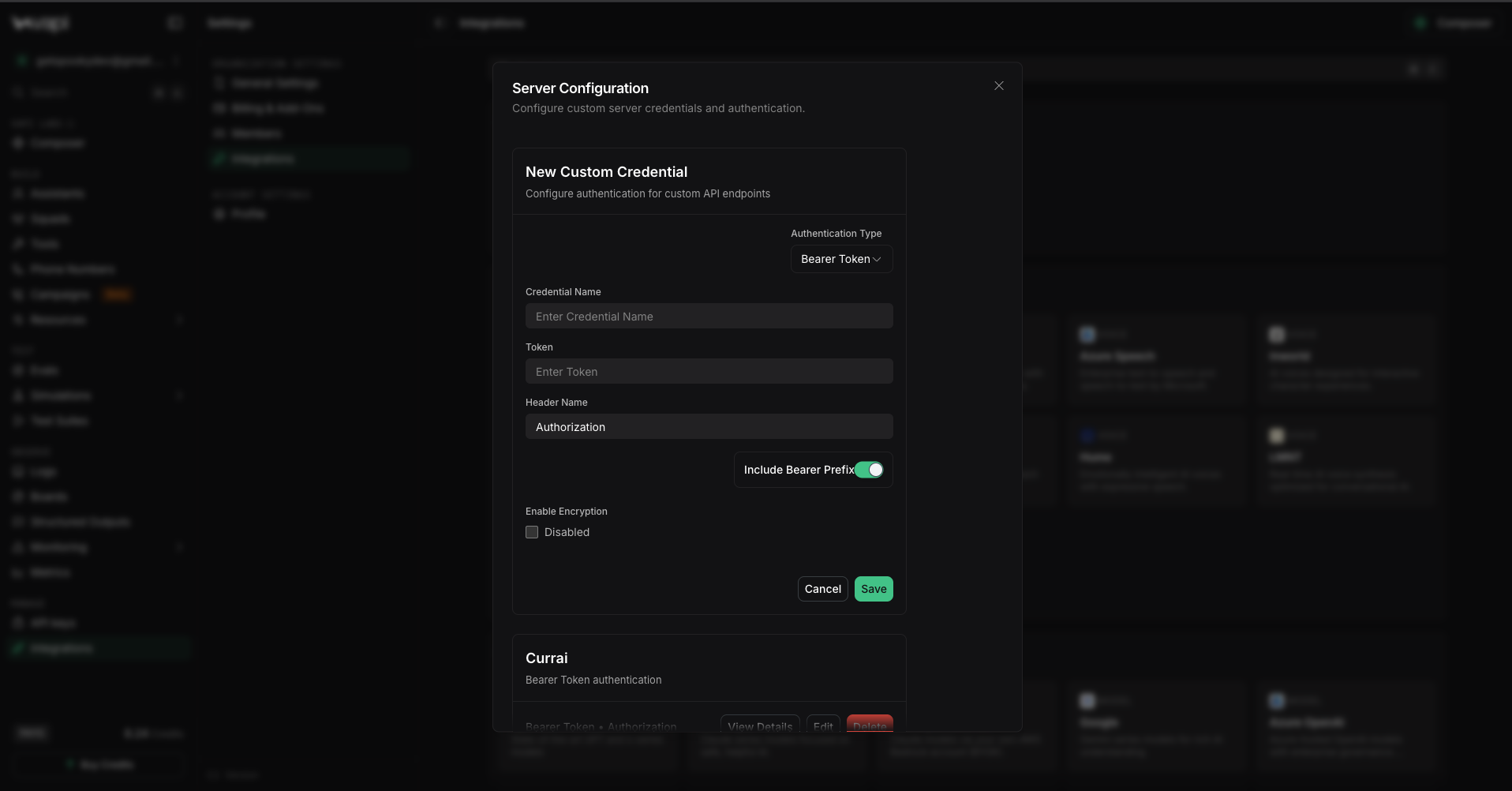
In Vapi, open Integrations → Server Configuration and create a custom Bearer Token credential. Paste the Currai secret as the token value. Do not add the word Bearer; Vapi adds the Authorization: Bearer prefix when sending the webhook.
This is a Currai-generated webhook secret, not a Vapi public or private API key.
3. Configure the assistant webhook
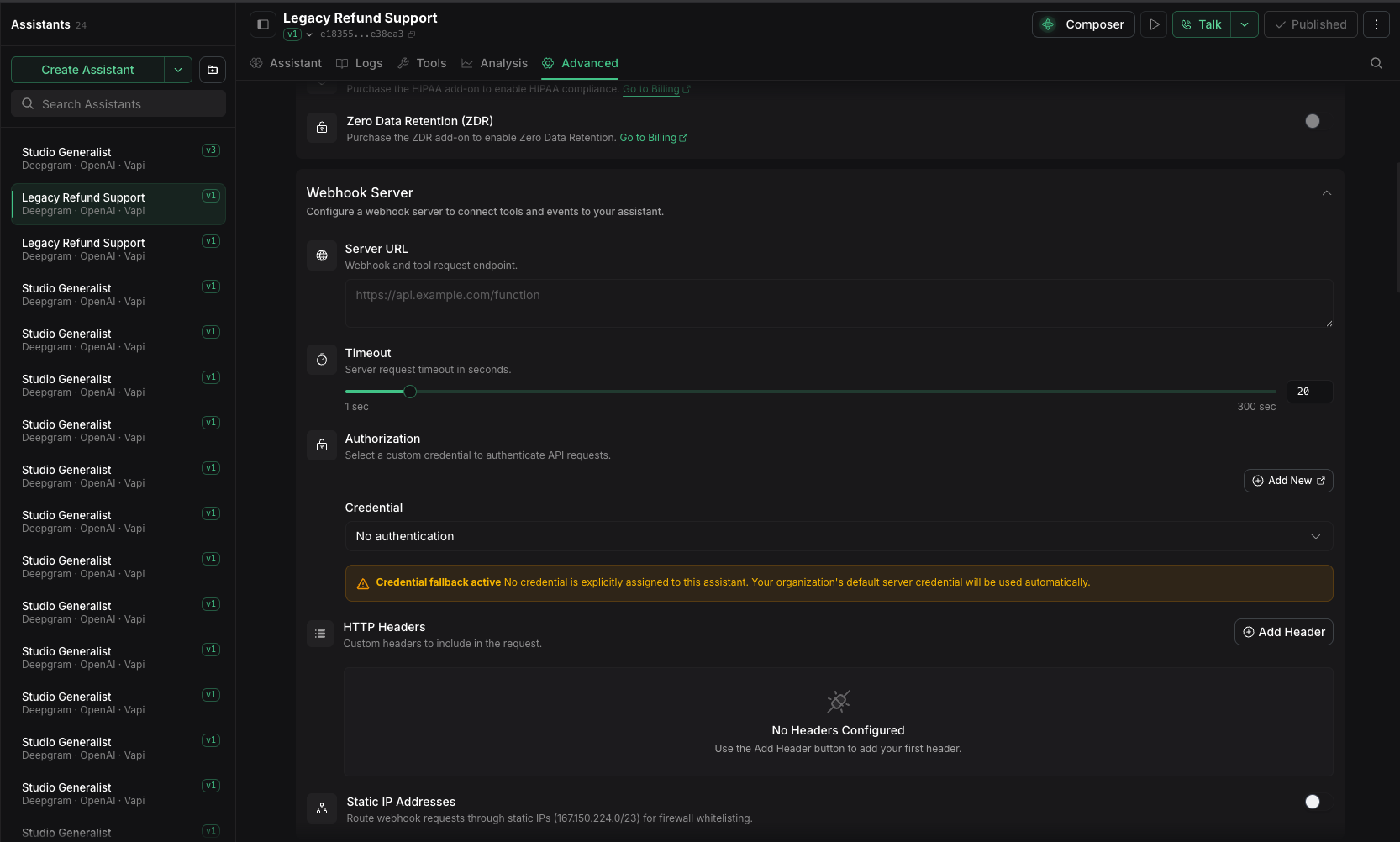
Open the Vapi assistant, then find Advanced → Webhook Server:
- Paste the Currai webhook endpoint into Server URL.
- Select the Currai Bearer Token credential under authorization.
- Set
serverMessagesto onlyend-of-call-reportwhere the dashboard exposes event selection. - Save and publish the assistant.
4. Complete a test call
Finish one real call with the published assistant. Return to Currai and open Settings → Connectors. The Vapi status should change from Waiting for first call to Receiving data.
Verify the result in:
- Analyse → User Stories for the readable conversation;
- Observe → Events for the call-boundary and turn events;
- Analyse → Intents and Analyse → Violations for matched signals.
The Vapi dashboard's webhook test may confirm authentication, but a completed call is required to verify transcript normalization and Currai analysis.
Existing Vapi Server URLs
Vapi sends an event to only one applicable Server URL according to its URL priority. If an assistant, phone number, or account already sends final reports to your own server, replacing that URL can interrupt the existing integration.
Keep the existing URL and forward the unchanged end-of-call-report request to Currai, including the Currai Bearer authorization. Do not use Currai as a live relay for tool calls, assistant requests, transfers, or call control.
Local development
Vapi cannot post to localhost. Expose the local Currai application with an HTTPS tunnel such as ngrok, then use the complete generated development endpoint. Use the production https://www.currai.app endpoint when testing the deployed connector.
Troubleshooting
- 401 Unauthorized — confirm Vapi selected the credential containing the current Currai secret. A rotated secret invalidates the previous value immediately.
- Waiting for first call — publish the assistant, finish the call, and confirm
end-of-call-reportis enabled. - No conversation turns — confirm the final Vapi report contains
artifact.messages, not only a plain transcript. - Delivery error — check the safe error shown on the connector card.
event_limit_exceededmeans the workspace has no remaining event credits.
For Vapi's provider-side behavior, see the official server events, server authentication, and Server URL priority documentation.
Many 200 responses followed by a 429
Currai acknowledges in-call notifications with 200 and status: "ignored".
They do not enqueue a conversation, consume conversation credits, or trigger
classification. Even a status-update with status: "ended" is ignored: Currai
waits for the complete end-of-call-report containing the conversation artifact.
An accepted final report returns 202. A 429 response with
code: "EventLimitExceeded" means the completed call exceeded the Currai account's
conversation or event allowance. Inspect the response body and your workspace
usage; reducing webhook frequency does not remove this quota. Re-delivery of an
already accepted call is deduplicated and does not reserve another trial credit.
To stop unnecessary in-call HTTP requests, configure the existing Vapi assistant
with serverMessages: ["end-of-call-report"]. Currai-created demo assistants use
this setting automatically; previously created assistants need their Vapi settings
updated. Keep clientMessages enabled for live transcripts in the browser.