
Configure
How to configure intents and violations
Define what users are trying to do, audit agent output against policies, and review the evidence behind every match.
Intents and violations answer different questions about the same conversation. An intent classifies the user's goal. A violation rule checks whether the agent's output broke a product policy.
| Signal | Reads | Use it to answer |
|---|---|---|
| Intent | User messages | What was the user trying to accomplish? |
| Violation | Agent output | Did the response break a policy or make an unsupported claim? |
Both attach confidence, evidence, and an explanation to the linked conversation.
Create an intent
- Open Analyse → Intents.
- Select Create intent.
- Choose a template or enter a name and description.
- Describe the messages and user goal that should match.
- Select Add Intent.
Templates provide useful starting points for rage prompts, frustrated users, and competitor mentions. Replace the wording when your product needs a narrower definition.
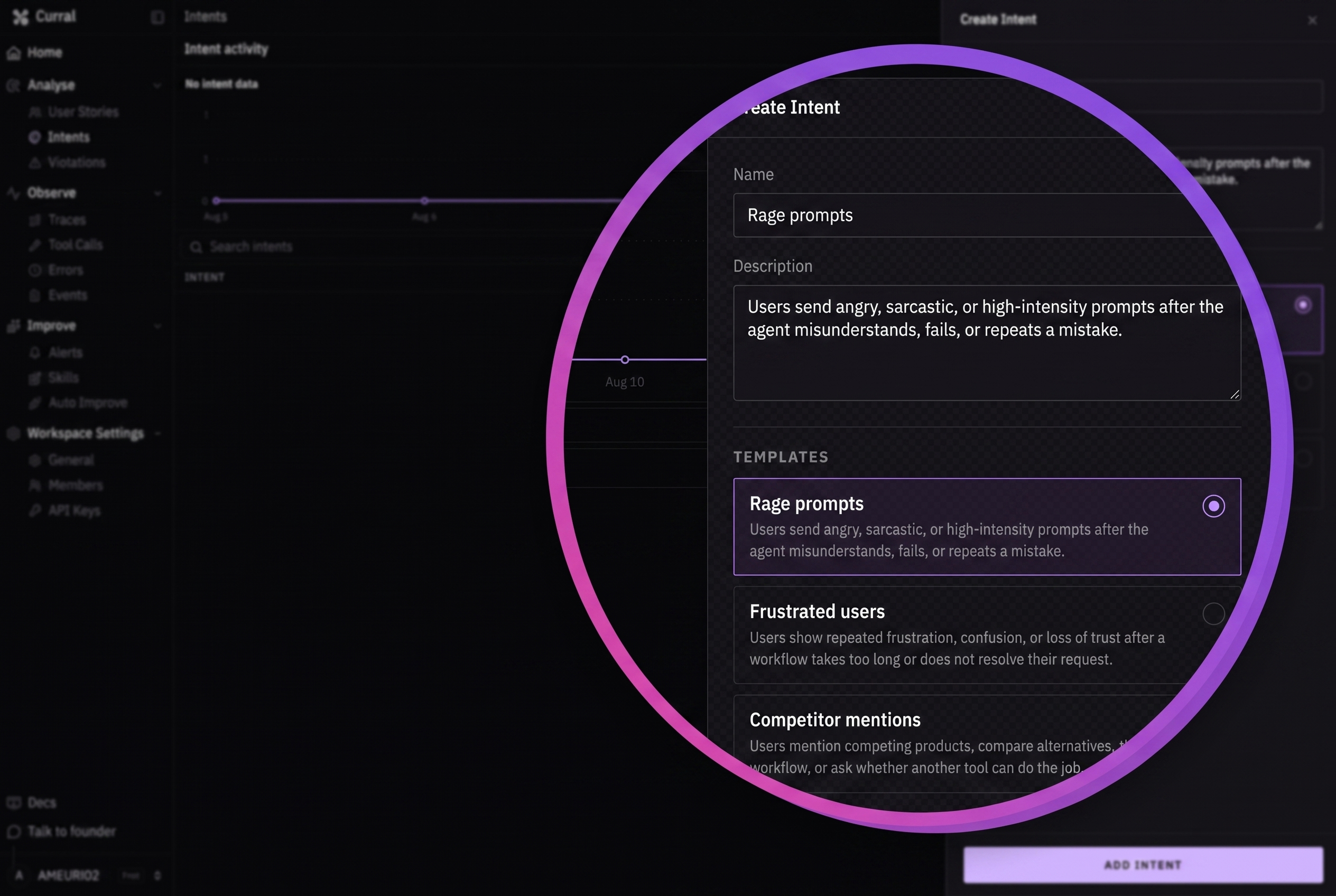
New intents use the approved status. Open an existing intent to edit its name or description, inspect recent matches, or delete it. Deleting an intent removes the definition; confirm the deletion only when the team no longer needs it.
Write a useful intent description
- Name one coherent user goal.
- Include the language or situations that indicate that goal.
- Separate goals that require different product decisions.
- Avoid describing the response you want from the agent; that belongs in a violation rule or product policy.
After changing an intent, run a new real interaction to validate the updated version.
Create a violation rule
- Open Analyse → Violations.
- Select New Rule.
- Choose a template or enter a rule title.
- Write the policy as behavior the agent should avoid or verify before claiming.
- Select Create Rule.
The built-in templates cover hallucinated links and unprompted competitor mentions. A custom rule can cover claims about refunds, unavailable actions, unsafe instructions, or any product-specific requirement visible in agent output.
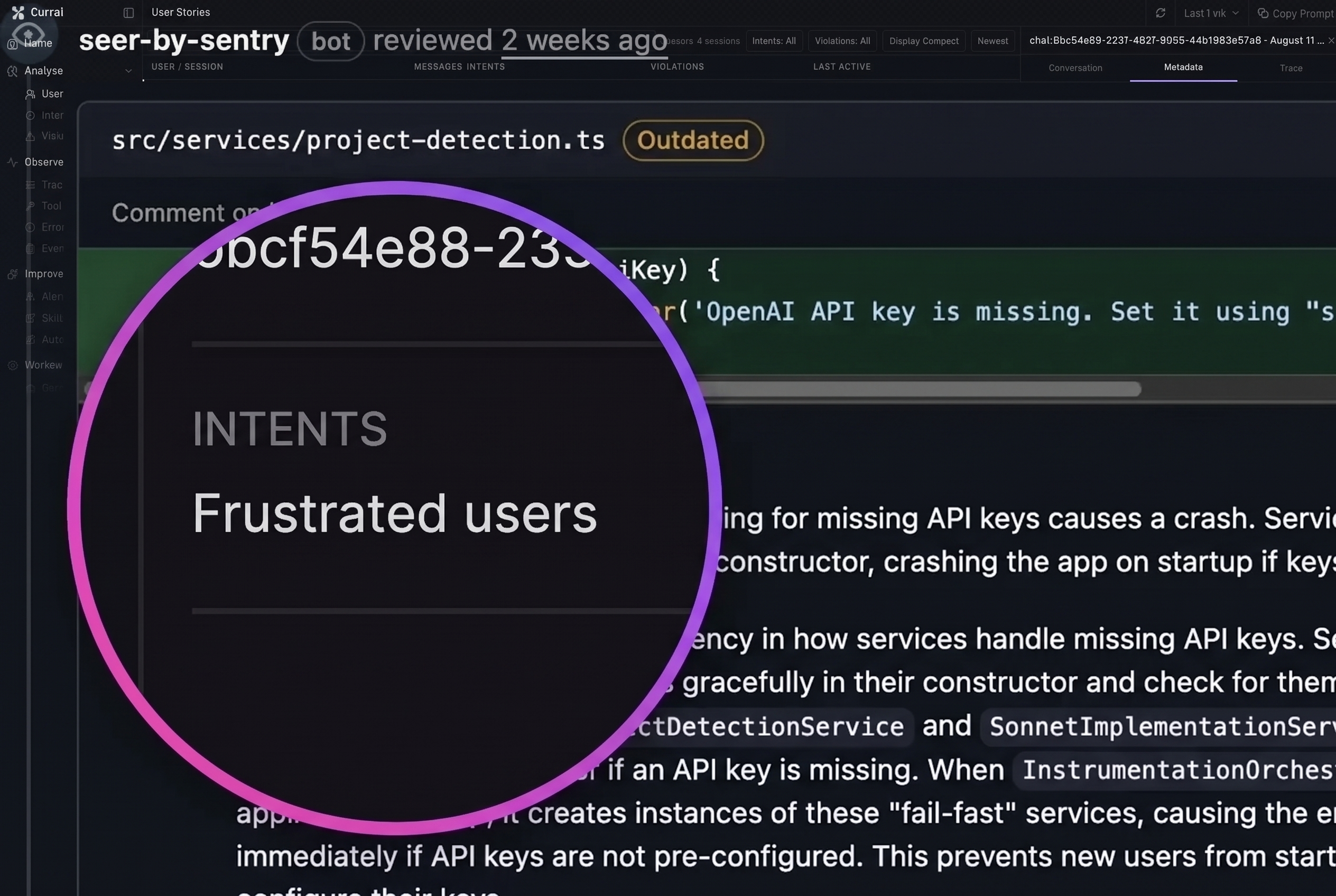
Open an existing rule to edit its title or policy, inspect recent evidence, or delete the rule and its matches. The rule list shows whether each rule is active and how many matches it has.
Review matched evidence
Open an intent or violation after a new interaction. Each match shows:
- the session identifier and a link to the conversation;
- confidence as a percentage;
- the evidence excerpt that caused the match;
- an explanation of how the evidence fits the definition.
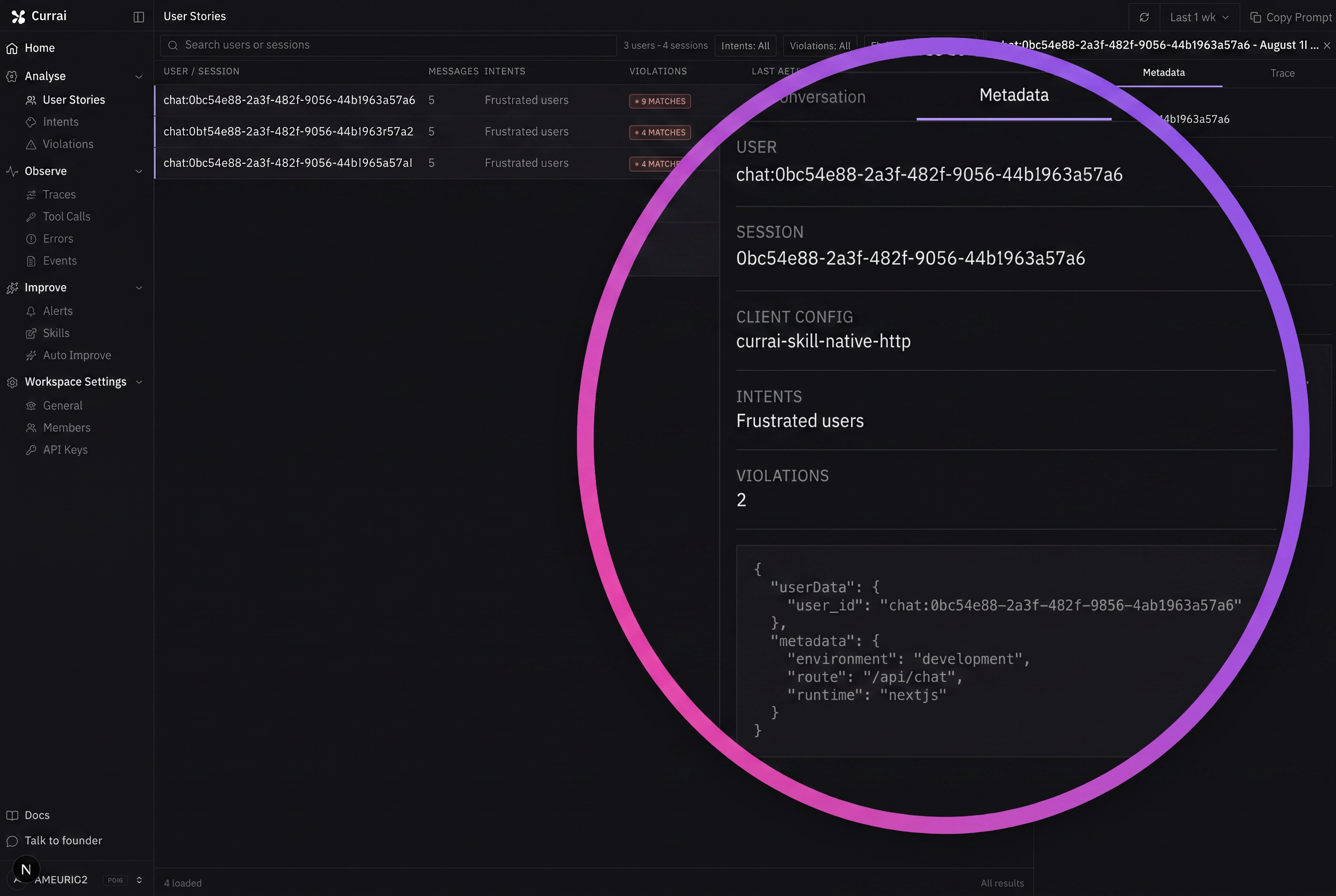
Treat confidence as a review aid, not a substitute for reading the evidence. Open the linked conversation when the excerpt lacks enough context.
Improve match quality
- If unrelated messages match, narrow the description or policy.
- If expected messages do not match, add clearer language and validate with a new interaction.
- If user requests are classified as violations, move that definition to Intents.
- If an agent response violates a rule but only the user message was captured, fix the application instrumentation so the event includes the output.
Use matches elsewhere
Matched intents and violations appear in User Stories and Command Center. They can also feed configured alerts, Daily Slack Reports, and evidence-backed Auto Improve proposals.
Next, configure Slack and alerts.