
Configure
How to configure Slack and alerts
Monitor important conditions in Currai and send daily conversation intelligence to a connected Slack channel.
Currai alerts turn recurring production evidence into a condition your team can monitor. Dashboard alerts are available on every plan. Slack alerts and Daily Slack Reports require Pro or Business.
Create a dashboard alert
- Open Improve → Alerts.
- Choose Critical policy violation, Agent failure rate spike, Repeated user frustration, or Create Custom Alert.
- Review the alert name, metric, condition, threshold, and cadence.
- Select Create alert.
Configured alerts appear at the bottom of the page. Select Active to pause an alert and Paused to enable it again. Use the delete action when the condition is no longer useful.
Free workspaces can create and manage these conditions. The Slack channel control remains locked and links to Workspace Settings → Billing.
Connect Slack for the Daily Report
- Confirm the workspace is on Pro or Business.
- Open Improve → Alerts.
- Select Set Up Daily Slack Report.
- Review the report name, trigger description, notification content, check interval, and lookback window.
- Select Connect Slack.
- In Slack, choose the workspace and channel and approve Currai.
- Return to Currai and confirm the workspace and channel appear in the drawer.
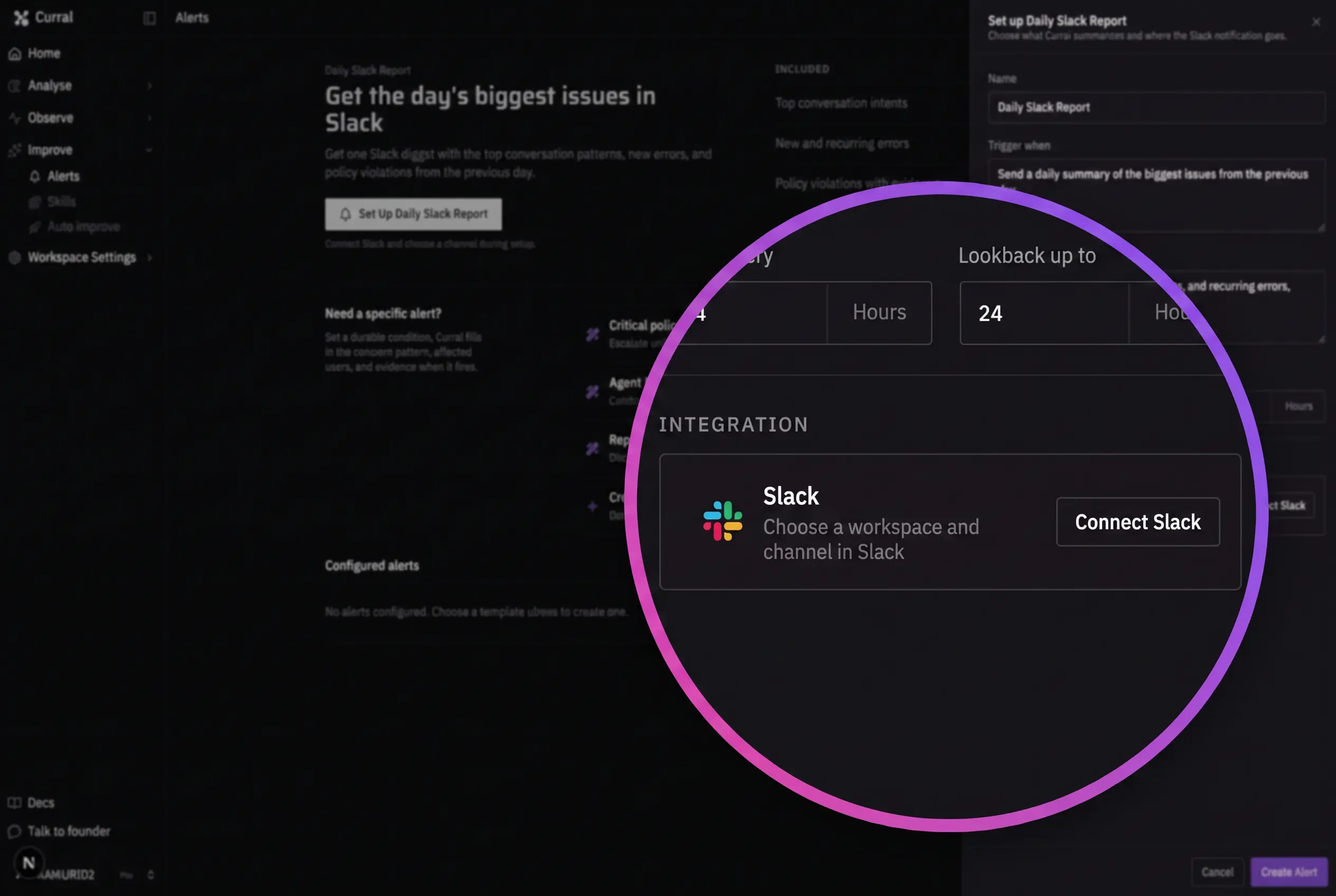
If Slack already has a connection, select Change to authorize a different workspace or channel.
Configure the report
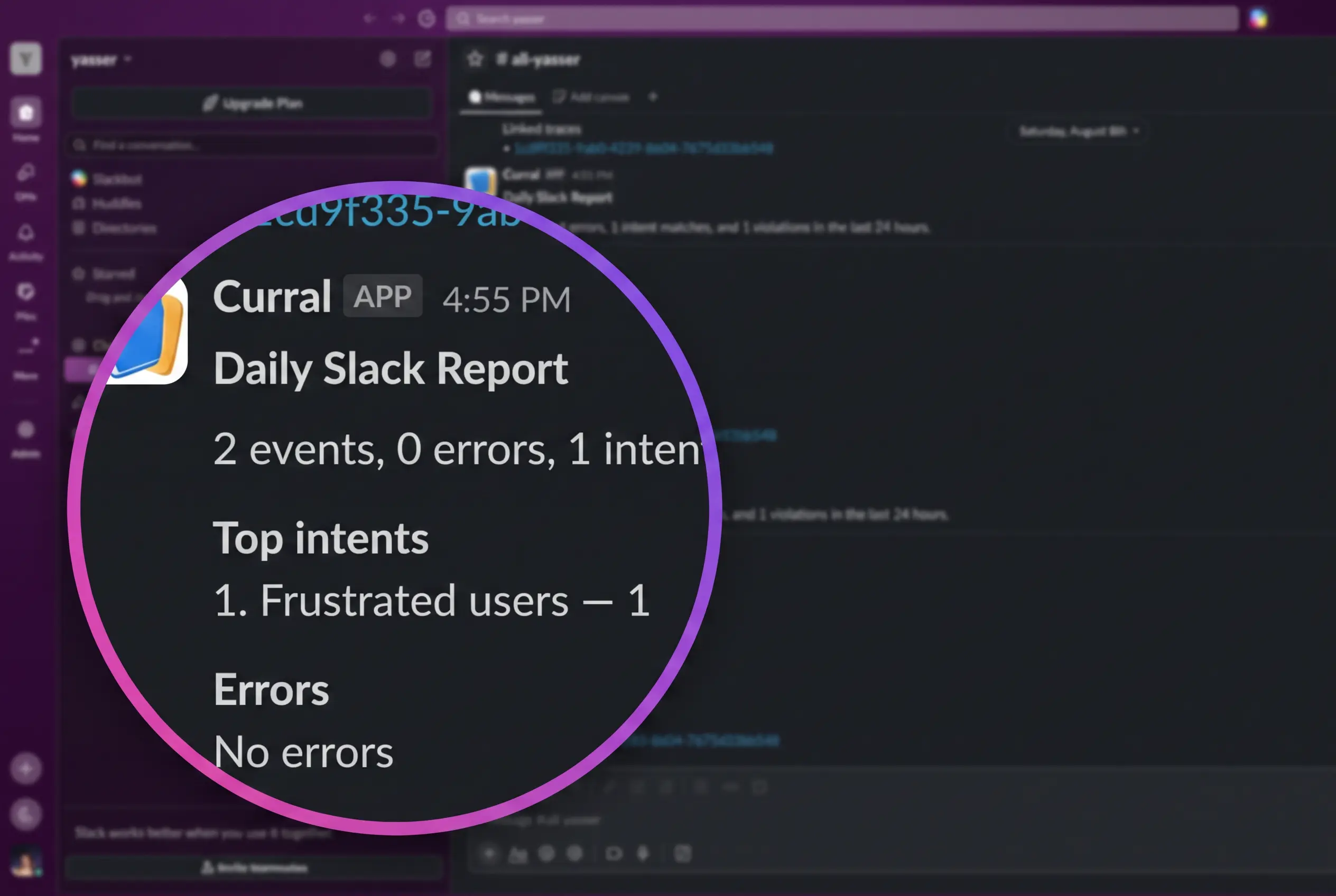
The default report summarizes the previous day's biggest issues and includes:
- top conversation intents;
- new and recurring errors;
- policy violations with evidence;
- links back to the relevant Currai traces.
Use Check every to control how often Currai evaluates the report and Lookback up to to control the evidence window. Both values are entered in hours and must be greater than zero.
Select Create Alert after Slack is connected. The report appears under Configured alerts and can be paused, enabled, or deleted like other alerts.
Verify delivery
Wait for the next scheduled check, then confirm the selected channel receives the digest. Open one of its Currai links and verify that it lands on the evidence for the reported pattern, error, or violation.
Plan access
| Plan | Dashboard alerts | Slack alerts and notifications |
|---|---|---|
| Free | Available | Locked with an upgrade link |
| Pro | Available | Available |
| Business | Available | Available |
The same entitlement is enforced by the dashboard, Slack authorization, alert creation, and scheduled delivery. Changing the UI or calling a backend function directly cannot enable Slack on Free.
Troubleshooting
- If Set Up Daily Slack Report is replaced by an upgrade link, upgrade the workspace to Pro or Business.
- If OAuth is cancelled, reopen setup and select Connect Slack again.
- If OAuth fails, confirm the Currai Slack app is configured and allowed by the Slack workspace.
- If no digest arrives, confirm the alert is Active, the channel still exists, and the lookback contains real evidence.
- If the wrong channel is shown, select Change and repeat Slack authorization.
See How to troubleshoot Currai for ingestion, matching, quota, and retention issues.